Field Transforms
Field transforms let you modify, format, and reshape field values as they move from your model to a destination. They ensure the data arriving at each destination matches its expected format and semantics without changing your source data.
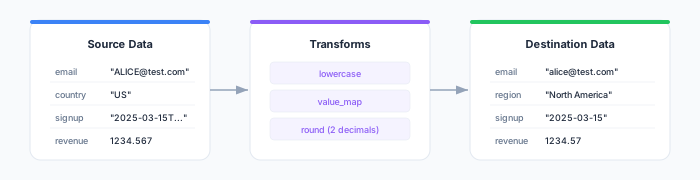
Overview
When a sync runs, each row passes through any transforms you have configured before the data is written to the destination. Transforms operate on individual field values (or combinations of fields) and produce a new value for the destination field.
You can apply transforms to any mapped field in a sync. Zeotap provides a library of built-in transform presets organized by category, plus support for custom code transforms when you need complete flexibility.
Built-in Transforms
String Operations
| Transform | Description | Parameters | Example |
|---|---|---|---|
| Uppercase | Convert text to uppercase | — | alice@test.com → ALICE@TEST.COM |
| Lowercase | Convert text to lowercase | — | ALICE@TEST.COM → alice@test.com |
| Trim | Remove leading and trailing whitespace | — | hello → hello |
| Substring | Extract part of a string | Start position, Length | alice@test.com → alice (start 0, length 5) |
| Replace | Replace all occurrences of a string | Find text, Replace text | 555-123-4567 → 5551234567 (find -, replace with empty) |
| Regex Extract | Extract a pattern match | Pattern, Group (optional) | user@domain.com → domain.com (pattern @(.+), group 1) |
| Pad Left | Pad the start to a fixed length | Target length, Pad character | 42 → 0042 (length 4, pad 0) |
| Pad Right | Pad the end to a fixed length | Target length, Pad character | Hi → Hi.. (length 4, pad .) |
| Split Part | Extract the Nth segment after splitting | Delimiter, Index | a-b-c → b (delimiter -, index 2) |
Date / Time Operations
| Transform | Description | Parameters | Example |
|---|---|---|---|
| Date Format | Reformat a date or timestamp | Output format | 2025-03-15T10:30:00Z → 03/15/2025 (format MM/DD/YYYY) |
| Date Parse | Parse a date string into a standard format | Input format | 15-Mar-2025 → 2025-03-15 (input DD-Mon-YYYY) |
| Extract Part | Extract a component from a date | Part (year, month, day, hour, etc.) | 2025-03-15 → 3 (part month) |
| Date Add | Add or subtract a time interval | Amount, Unit (days, hours, etc.) | 2025-03-15 → 2025-04-14 (add 30 days) |
| Timezone Convert | Convert between timezones | Source timezone, Target timezone | 2025-03-15 10:00 UTC → 2025-03-15 05:00 EST |
Numeric Operations
| Transform | Description | Parameters | Example |
|---|---|---|---|
| Round | Round to N decimal places | Decimal places | 1234.567 → 1234.57 (2 places) |
| Floor | Round down to the nearest integer | — | 4.9 → 4 |
| Ceil | Round up to the nearest integer | — | 4.1 → 5 |
| Abs | Absolute value | — | -42 → 42 |
| Multiply | Multiply by a constant | Factor | 100 → 1.00 (factor 0.01, for cents to dollars) |
| Divide | Divide by a constant | Divisor | 1500 → 15 (divisor 100) |
| Clamp | Constrain a value to a range | Min, Max | 150 → 100 (min 0, max 100) |
Combine / Split
These transforms can use multiple source columns as inputs.
| Transform | Description | Parameters | Example |
|---|---|---|---|
| Concat | Concatenate values from multiple columns | Separator | first_name + last_name → Alice Smith (separator ) |
| Coalesce | Use the first non-null value from multiple columns | — | mobile_phone is null, home_phone is 555-1234 → 555-1234 |
| Template | Build a string from a template with column placeholders | Template string | {first_name} ({email}) → Alice (alice@test.com) |
| Split Part | Extract the Nth segment after splitting | Delimiter, Index | New York, NY → NY (delimiter , , index 2) |
Conditional / Mapping
| Transform | Description | Parameters | Example |
|---|---|---|---|
| Value Map | Map input values to output values | Mapping table, Default (optional) | US → North America, DE → Europe |
| If Then Else | Return one value if a condition is met, another otherwise | Condition, Then value, Else value | If status equals active → true, else → false |
| Null If | Set the value to null when it matches a specific value | Match value | N/A → null, hello → hello |
Hash / Encode
| Transform | Description | Parameters | Example |
|---|---|---|---|
| SHA-256 | Hash the value with SHA-256 | — | alice@test.com → a1b2c3d4... |
| MD5 | Hash the value with MD5 | — | alice@test.com → e4f5a6b7... |
| Base64 Encode | Base64-encode the value | — | hello world → aGVsbG8gd29ybGQ= |
| Base64 Decode | Decode a Base64 string | — | aGVsbG8gd29ybGQ= → hello world |
| URL Encode | Percent-encode the value for URLs | — | hello world → hello%20world |
| URL Decode | Decode a percent-encoded string | — | hello%20world → hello world |
JSON Operations
| Transform | Description | Parameters | Example |
|---|---|---|---|
| JSON Extract | Extract a value from a JSON string by path | JSON path | {"address":{"city":"NYC"}} → NYC (path address.city) |
| JSON Array Element | Extract an element from a JSON array by index | Index | ["a","b","c"] → b (index 1) |
| To JSON String | Serialize the value as a JSON string | — | hello → "hello" |
Custom Code Transforms
When the built-in presets do not cover your use case, you can write a custom transform function. Custom code transforms accept the field value as input and return a transformed value.
JavaScript
JavaScript custom transforms are available when your warehouse is Snowflake or BigQuery. Write a transform(val) function that returns the new value:
function transform(val) {
  // Normalize international phone numbers
  var digits = val.replace(/[^0-9]/g, '');
  if (digits.length === 10) {
    return '+1' + digits;
  }
  return '+' + digits;
}
Python
Python custom transforms are available for all warehouse types. Write a transform(val) function:
def transform(val):
    # Capitalize each word in a name
    if val is None:
        return None
    return ' '.join(word.capitalize() for word in val.split())
Custom code runs inside your warehouse as a temporary function during the sync. It has no access to external networks or services. Keep functions simple, focused on a single transformation, and free of external dependencies.
Configuring Transforms
Using the Transform Dialog
To add a transform to a field mapping:
- Navigate to your sync and open the Field Mapping editor
- Locate the mapping row for the field you want to transform
- Click the Transform cell in that row (it shows “None” by default)
- In the transform dialog, browse categories on the left panel or use the search bar
- Select a transform to see its description, parameters, and a live preview
- Configure any required parameters on the right panel
- Set the Error Handling behavior (see below)
- Click Apply to save the transform
You can add transforms to as many mapped fields as you need. Each field mapping supports one transform.
Multi-Column Transforms
The Concat, Coalesce, and Template transforms accept multiple source columns as inputs. When you select one of these transforms, the dialog shows a column picker where you can choose additional source columns. The combined values are used as input to the transform, and the result is written to the destination field.
For example, to concatenate first_name and last_name into a Full Name destination field:
- Map any source column (e.g.,
first_name) to theFull Namedestination field - Click the Transform cell and select Concat
- In the column picker, add
last_nameas a second input column - Set the separator to a space (
- Click Apply
Error Handling
Per-Field Error Behavior
Each transform has an error handling setting that controls what happens when the transform fails for a given row (for example, applying a numeric transform to a non-numeric value).
| Behavior | Description |
|---|---|
| Skip Row (default) | The entire row is excluded from the sync when the transform fails |
| Set Null | The field value is set to null; the row is still synced with other fields intact |
| Use Default | A fallback value you specify is used instead of the transform result |
| Fail Sync | The entire sync run stops immediately on the first transform error |
Choose the behavior based on how critical the field is. For non-essential fields, Set Null keeps the rest of the row flowing. For fields that must be correct (like hashed email identifiers), Skip Row or Fail Sync prevents bad data from reaching the destination.
Error Rate Threshold
If the percentage of rows experiencing transform errors exceeds a configurable threshold, the sync run aborts automatically. The default threshold is 10%. You can adjust this per sync in the sync settings.
For example, if a sync processes 10,000 rows and more than 1,000 rows fail transforms, the sync stops and reports the error. This protects against misconfigured transforms silently corrupting a large portion of your data.
Testing Transforms
Before running a full sync, use the Test Transforms button in the field mapping editor to preview how your transforms affect real data. Zeotap runs the transforms against a sample of rows from your model and displays a before-and-after comparison.
This preview helps you:
- Verify the transform produces the expected output format
- Catch configuration mistakes (wrong date format, incorrect regex, etc.)
- Confirm that error handling behaves as intended for edge-case values
Best Practices
- Start with built-in presets before reaching for custom code. The built-in transforms cover the vast majority of formatting and normalization needs and are easier to maintain.
- Use the preview feature to test transforms against sample data before running a full sync. This catches formatting issues early.
- Set error handling based on field criticality. Use Skip Row or Fail Sync for identifier fields; use Set Null or Use Default for non-essential attributes.
- Keep custom code simple. Write a single-purpose function with no external dependencies. Complex logic is better handled in your model SQL.
- Use Value Map for standardization. Country codes, region names, status labels, and category values are ideal candidates for value mapping rather than custom code.
- Chain transforms in your model when possible. If a field needs multiple transformations, consider applying some of them in your SQL model to keep the sync transform layer thin and easy to debug.
Next Steps
- Field Mapping — Learn about mapping source columns to destination fields
- Sync Modes — Understand upsert, insert, and mirror modes
- Sync Runs — Monitor sync execution and inspect row-level results
- Troubleshooting — Resolve common sync issues