Relationships
Relationships define how entity types connect to each other in your data model. They enable cross-entity queries in Audiences, power the ERD visualization, and provide the structural foundation for identity resolution and orchestration.
What Is a Relationship?
A relationship is a named, typed connection between two entity types. It specifies:
- Which entity types are connected (e.g., User and Account)
- The cardinality of the connection (one-to-one, one-to-many, many-to-many)
- The join keys used to link records from each entity type
- The direction of the relationship (which entity “owns” the connection)
Relationship Types
One-to-One
Each record in entity A is linked to exactly one record in entity B, and vice versa.
Example: A User has one Profile.

One-to-Many
Each record in entity A can be linked to multiple records in entity B, but each record in B links to exactly one record in A.
Example: An Account has many Users.
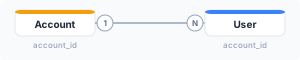
This is the most common relationship type. Other examples:
- A User has many Orders
- An Account has many Subscriptions
- A Category has many Products
Many-to-Many
Records in entity A can be linked to multiple records in entity B, and vice versa.
Example: Users can purchase many Products, and Products can be purchased by many Users.

Many-to-many relationships are typically resolved through an intermediate model (a junction table):
-- Junction model: User-Product Purchases
SELECT DISTINCT user_id, product_id
FROM order_items oi
JOIN orders o ON oi.order_id = o.order_id
Creating a Relationship
Using the UI
- Navigate to Relationships in the left sidebar
- Click Add Relationship (or use the context menu on an entity type)
- Select the source entity type (the “from” side)
- Select the target entity type (the “to” side)
- Choose the relationship type (one-to-one, one-to-many, many-to-many)
- Configure the join keys:
- Select the attribute from the source entity that links to the target
- Select the matching attribute from the target entity
- Give the relationship a name (e.g., “User belongs to Account”)
- Click Save
Using the API
curl -X POST https://composable.zeotap.com/api/v1/relationships \
  -H "Authorization: Bearer $API_TOKEN" \
  -H "Content-Type: application/json" \
  -d '{
    "name": "User belongs to Account",
    "source_entity_type_id": "et_user123",
    "target_entity_type_id": "et_account456",
    "type": "many_to_one",
    "source_key": "account_id",
    "target_key": "id"
  }'
Configuring Join Keys
Join keys define how records from two entity types are matched. The source key is an attribute on the source entity, and the target key is an attribute on the target entity. Records are linked when their join key values match.
Simple Join Key
The most common case — a foreign key on one entity references the primary key of another:
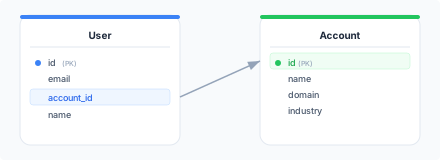
- Source entity: User
- Source key:
account_id - Target entity: Account
- Target key:
id
Shared Key
Sometimes two entities share the same key without a formal foreign key:
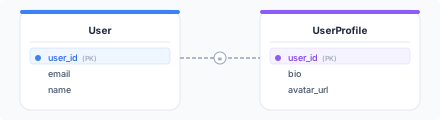
- Source key:
user_id - Target key:
user_id
Relationship Direction
Relationships in Zeotap have a direction, which affects how they’re queried in Audiences:
- Forward: “User belongs to Account” — from User to Account
- Reverse: “Account has Users” — from Account to User (automatically created)
When you create a relationship, Zeotap automatically creates the reverse relationship so you can traverse the graph in both directions.
How Relationships Are Used
Audiences
Relationships enable cross-entity audience criteria. For example:
- “Find Users whose Account has more than 100 employees” — Traverses the User-to-Account relationship
- “Find Accounts with at least one User who made a purchase in the last 30 days” — Traverses Account-to-User and User-to-Order relationships
- “Find Users who purchased a Product in the ‘Enterprise’ category” — Traverses User-to-Order and Order-to-Product relationships
Identity Resolution
Relationships help identity resolution understand the structure of your data. For example, knowing that Users belong to Accounts prevents merging users from different accounts that happen to share a phone number.
ERD Visualization
All relationships appear as connecting lines in the ERD visualization, showing the full structure of your data model at a glance.
Orchestration
Orchestrations use relationships to enrich personalization context. For example, an orchestration triggered by a User event can pull Account attributes (like company name) through the User-to-Account relationship.
Example Data Models
E-Commerce
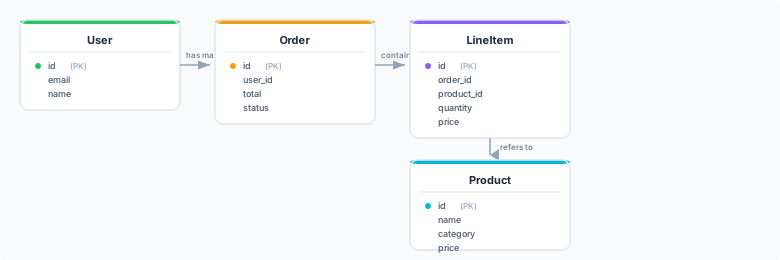
Relationships:
- User has many Orders (one-to-many, join:
User.id=Order.user_id) - Order has many LineItems (one-to-many, join:
Order.id=LineItem.order_id) - LineItem refers to Product (many-to-one, join:
LineItem.product_id=Product.id)
SaaS B2B
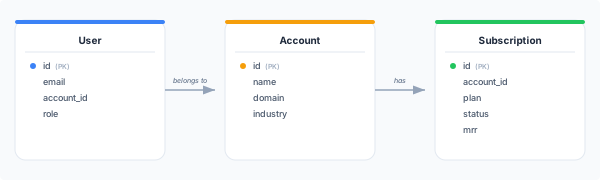
| User | Account | Subscription |
|---|---|---|
| id (PK) | id (PK) | id (PK) |
| name | account_id | |
| account_id | domain | plan |
| role | industry | status |
| mrr |
Relationships:
- User belongs to Account (many-to-one, join:
User.account_id=Account.id) - Account has Subscriptions (one-to-many, join:
Account.id=Subscription.account_id)
Managing Relationships
Editing a Relationship
To modify an existing relationship:
- Navigate to Relationships in the sidebar
- Click on the relationship line in the ERD (or find it in the relationships list)
- Update the name, type, or join keys
- Click Save
Changing join keys may affect audiences and identity resolution rules that depend on the relationship.
Deleting a Relationship
- Navigate to Relationships in the sidebar
- Select the relationship to delete
- Click Delete and confirm
Zeotap warns if the relationship is used in audience definitions, identity resolution rules, or orchestration triggers.
Best Practices
- Name relationships clearly — Use descriptive names like “User belongs to Account” rather than “User-Account”
- Use correct cardinality — Misclassifying a one-to-many as many-to-many can lead to incorrect audience counts
- Ensure join keys are indexed — For performance, make sure the columns used as join keys are indexed in your warehouse
- Avoid circular relationships — While technically possible, circular relationships (A -> B -> C -> A) can cause confusion in audience queries
- Start with core relationships — Define the most important relationships first (User-Account, User-Order) and add others incrementally
Next Steps
- Visualize your data model to see the full entity-relationship diagram
- Build audiences using cross-entity criteria
- Set up identity resolution across entity types