Filter Builder
The filter builder is the visual interface for defining audience membership conditions. It lets you construct boolean expressions using computed attribute and entity attribute conditions, AND/OR grouping, and nested condition groups — all without writing SQL.
Anatomy of the Filter Builder
The filter builder is organized into groups and conditions:
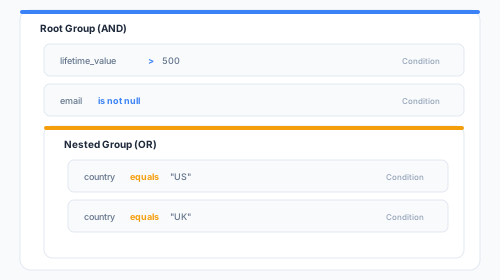
This example reads as: lifetime_value > 500 AND email IS NOT NULL AND (country = 'US' OR country = 'UK').
Conditions
Each condition represents a single filter expression. A condition has three parts:
1. Field
The field to filter on. Fields come from two sources:
- Computed Attributes — Derived metrics from the computed attributes module. Each computed attribute appears with its name and data type. Only computed attributes for the selected entity type are shown.
- Attributes — Columns from the entity type’s mapped table in your schema. These are the raw columns from your warehouse table.
The field dropdown is searchable — type to filter by name.
2. Operator
The comparison operator to apply. Available operators depend on the field’s data type. See the operators reference for the complete list.
Common operators:
| Operator | Types | Example |
|---|---|---|
| Equals | All | country equals "US" |
| Greater than | Number, Date | lifetime_value > 500 |
| Contains | String | email contains "@company.com" |
| Is null | All | phone is null |
| In | String, Number | plan_type in ["pro", "enterprise"] |
3. Value
The comparison value. The input type changes based on the field data type:
| Data Type | Input | Examples |
|---|---|---|
| String | Text field | "active", "@gmail.com" |
| Number | Numeric field | 500, 0.75, -10 |
| Boolean | Toggle | true, false |
| Date | Date picker | 2025-01-01 |
| Timestamp | Date-time picker | 2025-01-01T00:00:00Z |
For operators that accept multiple values (e.g., In, Not In), a multi-value input is displayed where you can add comma-separated values or paste a list.
For the Between operator, two value fields are shown for the lower and upper bounds.
Groups
Groups combine multiple conditions with a logical operator — either AND or OR.
AND Groups
All conditions in the group must be true for an entity to match. This is the default logic for the root group.
lifetime_value > 500 AND order_count >= 3 AND email is not nullOR Groups
At least one condition in the group must be true for an entity to match.
country equals "US" OR country equals "UK" OR country equals "CA"Switching Logic
Click the AND/OR toggle on the group header to switch between AND and OR logic. All conditions within that group are combined using the selected logic.
Nesting
Groups can be nested inside other groups to express complex boolean logic. The maximum nesting depth is 5 levels.
Example: Complex Audience
To build the expression:
(lifetime_value > 1000 OR order_count > 10) AND (country = "US" OR country = "UK") AND email is not nullConstruct it as:
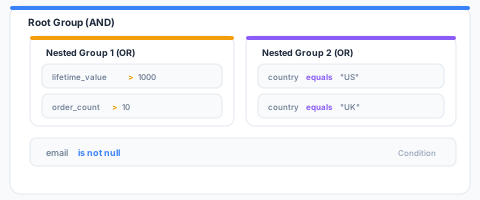
Adding a Nested Group
- Click Add Group inside any existing group
- The new nested group appears with a default AND logic toggle
- Add conditions inside the nested group
- Switch the logic to OR if needed
Removing a Group
Click the delete icon on the group header to remove the entire group and all its conditions. You will be asked to confirm if the group contains conditions.
Exists / Not Exists Conditions
In addition to value comparisons, the filter builder supports Exists and Not Exists conditions for related entity types.
These conditions check whether a related entity exists (or doesn’t exist) for the current entity, optionally with its own filter conditions.
Example: Users with at Least One Order
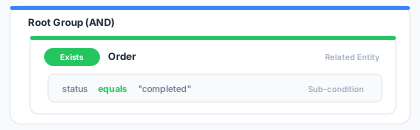
This selects all users who have at least one related order with status “completed”.
Example: Users with No Support Tickets
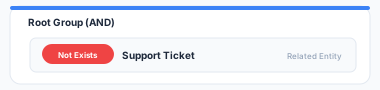
This selects all users who have no related support ticket records.
Exists/Not Exists conditions are available when the entity type has defined relationships to other entity types.
Keyboard Shortcuts
| Shortcut | Action |
|---|---|
Enter | Confirm the current value and add the condition |
Backspace (on empty value) | Remove the current condition |
Tab | Move to the next field in the condition |
Generated SQL
The filter builder compiles your conditions into SQL WHERE clauses. You can click View SQL at the bottom of the builder to see the generated query. This is useful for:
- Verifying complex logic is translated correctly
- Debugging unexpected audience membership
- Understanding how nested groups map to parenthesized SQL expressions
Example SQL Output
For the nested example above:
SELECT entity_key
FROM cdp_planner.user_traits
WHERE
  (lifetime_value > 1000 OR order_count > 10)
  AND (country = 'US' OR country = 'UK')
  AND email IS NOT NULL
Best Practices
- Start simple, then add complexity — Begin with one or two conditions, estimate the size, then add more conditions to narrow the audience
- Use estimation after each change — Check the estimated size after modifying conditions to make sure the audience is the right size
- Prefer computed attributes over raw attributes — Computed attributes are pre-computed and indexed, making audience evaluation faster than querying raw warehouse columns
- Name conditions logically — When you have many conditions, the visual hierarchy of AND/OR groups helps communicate intent to team members
- Limit nesting depth — While up to 5 levels are supported, audiences with 2-3 levels of nesting are easier to understand and maintain
Next Steps
- Operators Reference — Complete list of comparison operators by data type
- Size Estimation — Estimate audience size before saving
- Audience Preview — See sample members