Orchestrations
Orchestrations are multi-step, multi-channel workflows that move members through a sequence of steps — entry, delays, branches, and destination sends — automatically and at scale. You design each orchestration on a visual canvas by placing and connecting tiles.
Why Orchestrations?
One-shot audience syncs push a list to a destination once. Orchestrations let you think in terms of an ongoing experience instead of a single send:
- Multi-step — Chain steps across hours, days, or weeks based on member behavior.
- Multi-channel — Send to email, SMS, push, ad, CRM, and warehouse destinations within one flow.
- Branching — Route members down different paths by filter conditions, or split them by percentage for testing.
- Condition-aware waiting — Delay for a fixed time, or hold members until a condition is met.
- Visual design — Build and read the whole flow on a drag-and-drop canvas.
How Orchestrations Work
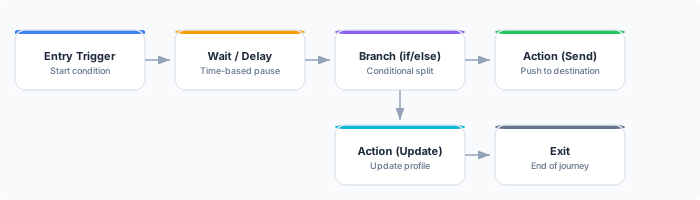
- Members enter the orchestration when they match the Entry tile — joining an audience or triggering an event.
- On each scheduled evaluation, the engine moves each member through the canvas tile by tile, respecting delays and evaluating branch conditions.
- Sends execute at each Send to Destination tile, pushing members to the configured destination.
- Members exit when they reach an Exit tile.
The Canvas
The canvas is a visual editor where you build a workflow by placing and connecting tiles. Each tile is a step, and edges define the flow between them.
| Tile | Purpose | Example |
|---|---|---|
| Entry | Who enters | ”Members of the High-Value audience” |
| Send to Destination | Sync to a destination | ”Send to Braze” |
| Branch | Route by filter conditions | ”If lifetime value > $500, take the VIP path” |
| A/B Split | Split by percentage | ”80% variant A, 20% variant B” |
| Delay | Wait a fixed duration | ”Wait 3 days” |
| Hold Until | Wait for a condition | ”Hold until the member opens the email” |
| Memory | Store a value on the member’s context | ”Set user_segment = high_value” |
| Exit | Remove from the orchestration | ”Orchestration complete” |
An orchestration has exactly one Entry tile and at least one Exit tile. The canvas is a directed acyclic graph — no loops.
Orchestration States
| State | Description |
|---|---|
| Draft | Being designed on the canvas. No members are processed. |
| Active | Live. Members enter on the schedule and the engine advances them through tiles. |
| Paused | Temporarily stopped. No new members enter and active members are held in place. |
| Draining | No new members enter, but members already in the orchestration continue to their exit. |
| Archived | Retired. No new entries. |
| Error | An evaluation problem needs attention; the reason is shown on the orchestration. |
Rehearsal
Before activating, use Run Rehearsal to simulate how members would flow through the orchestration over a time window, without sending anything. A rehearsal reports how many members would have entered, where they would be, and how many would have completed or exited — a safe way to sanity-check the flow. See Execution & Monitoring.
Monitoring
While an orchestration is active, the canvas overlays live member counts on each tile, and the run history records each evaluation run. See Execution & Monitoring.
API Reference
Orchestrations are managed through the Zeotap REST API:
# List orchestrations
GET /api/v1/workspaces/{id}/journeys

# Get an orchestration with its canvas definition
GET /api/v1/workspaces/{id}/journeys/{journeyId}

# Create an orchestration
POST /api/v1/workspaces/{id}/journeys

# Activate / pause / resume
POST /api/v1/workspaces/{id}/journeys/{journeyId}/activate
POST /api/v1/workspaces/{id}/journeys/{journeyId}/pause
POST /api/v1/workspaces/{id}/journeys/{journeyId}/resume
See the Orchestrations API for full request/response schemas.
Best Practices
- Start simple — Begin with a linear flow (Entry → Delay → Send → Exit), then add branches once the core path works.
- Rehearse first — Run a rehearsal before activating to confirm members flow where you expect.
- Cover every path in a Branch — Members who match no branch stay put; add a catch-all branch to route the remainder.
- Keep A/B Split totals at 100% — Members in an unallocated remainder are not routed.
- Use exit criteria — Set conditions under which members should leave early (for example, once they convert).