Salesforce Marketing Cloud
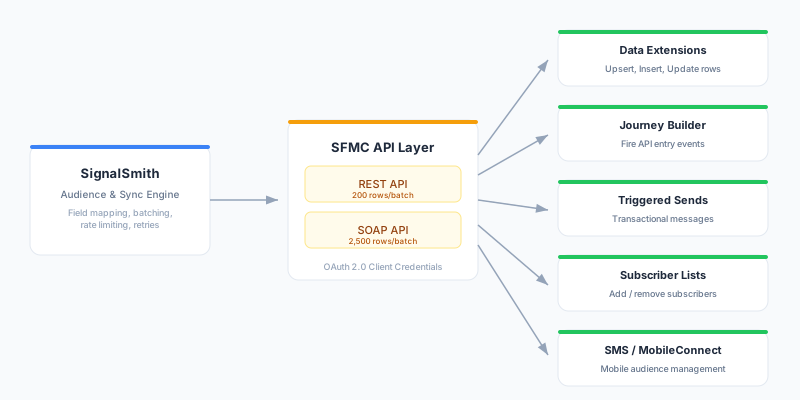
Sync customer data to Salesforce Marketing Cloud (SFMC) for email, SMS, and journey-based marketing campaigns. Zeotap pushes data to Data Extensions, fires Journey Builder entry events, triggers transactional messages, and manages subscriber and SMS audiences — all through SFMC’s REST and SOAP APIs.
For very large audiences (millions of rows), this destination also handles bulk loading itself: enable File Upload mode and Zeotap delivers each batch as a file via Enhanced FTP, then automatically creates and runs the SFMC import and reads back the results — no Automation Studio setup, and no API rate limits. A separate Salesforce Marketing Cloud (SFTP) destination exists only for teams that want to own the import themselves or cannot provision API credentials.
Prerequisites
- A Salesforce Marketing Cloud account with an active subscription (Enterprise edition or higher)
- Administrator access to create Installed Packages in SFMC
- API access enabled for your SFMC tenant
- The Business Unit Member ID (MID) if targeting a child Business Unit
- For SOAP API usage: the SOAP Base URI from your Installed Package
- For File Upload mode: an Enhanced FTP account and its username/password, plus the tenant-specific FTP hostname — all from Setup > Data Management > FTP Accounts (separate from your API credentials)
Permissions
Your Installed Package must have the correct API Integration permission scopes for the object types you plan to sync. The table below lists the minimum required scopes per object type.
| Object Type | SFMC Permission Scope | Access Level |
|---|---|---|
| Data Extension | Email > Subscribers > Data Extensions | Read, Write |
| Contact | Contacts > List and Subscribers | Read, Write |
| Journey Entry | Journeys > Journeys | Read, Execute |
| Triggered Send | Email > Interactions > Triggered Sends | Read, Send |
| Subscriber List | Email > Subscribers > Subscribers | Read, Write |
| SMS Audience | Channels > SMS | Read, Write |
When creating the API Integration component in your Installed Package, check these scope categories:
- Data Extensions: Read, Write
- List and Subscribers: Read, Write
- Journeys: Read, Execute
- Triggered Sends: Read, Send
- SMS: Read, Write (if using SMS Audiences)
- Automations: Read, Write, Execute (if using the SOAP API for Data Extensions, or File Upload mode — the import definitions File Upload mode creates and runs are Automation Studio objects)
Tip: Grant all permissions listed above to avoid needing to reconfigure the package later when adding new object types.
Authentication
SFMC uses OAuth 2.0 Client Credentials authentication via an Installed Package. Unlike Salesforce CRM, there is no user-facing OAuth consent screen — you configure a server-to-server integration with a Client ID and Client Secret.
- Log in to Salesforce Marketing Cloud
- Click the gear icon (top-right) and select Setup
- In the left sidebar, expand Platform Tools > Apps and click Installed Packages
- Click New to create a new package — name it something descriptive like “Zeotap Integration”
- Click Add Component, select API Integration, then choose Server-to-Server
- On the scope selection screen, check the permissions listed in the Permissions section above
- Click Save — SFMC generates a Client ID and Client Secret
- On the package summary screen, note the three URIs: Authentication Base URI, REST Base URI, and SOAP Base URI
- Extract your subdomain from any of the URIs — it is the part before
.auth.marketingcloudapis.com(e.g.,mc563885gzs27c8lz51l91t3x558) - If targeting a child Business Unit, navigate to Setup > Company Settings > Business Units and note the MID (Member ID)
- In Zeotap, create a new SFMC destination and paste the Client ID, Client Secret, subdomain, and URIs
Note: All three URIs can be derived from your subdomain. If you provide the subdomain, Zeotap constructs the Authentication, REST, and SOAP URIs automatically using the pattern
https://{subdomain}.{service}.marketingcloudapis.com.
Configuration
| Field | Type | Required | Description |
|---|---|---|---|
| Subdomain | Text | Yes | Your SFMC tenant-specific subdomain (e.g., mc563885gzs27c8lz51l91t3x558). Found in your Installed Package details. |
| Authentication Base URI | Text | Yes | The OAuth authentication endpoint (e.g., https://{subdomain}.auth.marketingcloudapis.com) |
| REST Base URI | Text | Yes | The REST API endpoint (e.g., https://{subdomain}.rest.marketingcloudapis.com) |
| SOAP Base URI | Text | Yes | The SOAP API endpoint (e.g., https://{subdomain}.soap.marketingcloudapis.com) |
| Business Unit | Text | No | Member ID (MID) of the target Business Unit. Leave blank for the parent Business Unit. |
| Enhanced FTP Host | Text | No | Only needed for File Upload mode with the Enhanced FTP location. Tenant-specific hostname — copy it exactly from Setup > Data Management > FTP Accounts. |
| Enhanced FTP Port | Number | No | Default: 22. |
| File Upload Location | Select | No | Where File Upload mode drops files for SFMC to import: Enhanced FTP (default, works out of the box), Amazon S3, or Google Cloud Storage. See File locations. |
| SFMC File Location External Key | Text | Conditional | Required for S3/GCS: the External Key of the File Location you created in SFMC Setup. Leave blank for Enhanced FTP. |
| S3 Bucket / Region / Path Prefix | Text | Conditional | S3 location only. Must match the bucket and folder path your SFMC S3 file location points at. |
| GCS Bucket / Path Prefix | Text | Conditional | GCS location only. Must match the bucket and folder path your SFMC GCS file location points at. |
Additional credential fields accompany the Client ID and Client Secret; fill only the set matching your File Upload location:
| Field | Type | Required | Description |
|---|---|---|---|
| Enhanced FTP Username | Text | No | Enhanced FTP location only. From Setup > Data Management > FTP Accounts (separate from your API credentials). |
| Enhanced FTP Password | Password | No | Enhanced FTP location only. |
| AWS Access Key ID / Secret Access Key | Text / Password | No | S3 location only. Needs write access to the bucket. |
| GCP Service Account JSON | File | No | GCS location only. The service account needs write access to the bucket. |
Target Settings
| Field | Type | Required | Description |
|---|---|---|---|
| Object Type | Select | Yes | The type of SFMC object to sync data to: Data Extension, Contact, Journey Entry, Triggered Send, Subscriber List, or SMS Audience |
| Data Extension Key | Text | Conditional | External key of the target Data Extension (required for Data Extension) |
| Data Extension Name | Text | No | Human-readable name for the Data Extension. If the Data Extension does not exist and this name is provided, Zeotap will attempt to create it automatically with columns derived from your field mapping. |
| Journey Definition Key | Text | Conditional | The Journey Builder definition key (required for Journey Entry) |
| Journey Version | Number | No | Journey version number (default: 1) |
| Triggered Send Key | Text | Conditional | External key of the triggered send definition (required for Triggered Send) |
| List ID | Text | Conditional | Subscriber list ID (required for Subscriber List) |
| SMS Keyword | Text | Conditional | SMS keyword (required for SMS Audience) |
| SMS Short Code | Text | Conditional | SMS short code (required for SMS Audience) |
| Use SOAP API | Toggle | No | Enable SOAP API for higher batch limits (2,500 vs 200 rows per call). Recommended for large Data Extensions. See REST vs SOAP API. |
| Use File Upload (bulk import) | Toggle | No | Load Data Extension rows via file import instead of API calls — bypasses API rate limits. Recommended for very large audiences (millions of rows). See File Upload mode. |
| File Import Timeout (minutes) | Number | No | How long to wait for each SFMC import to finish before failing the batch (default: 30). File Upload mode only. |
| Import Notification Email | Text | No | Optional. SFMC sends this address a notification for each import run, including row-level rejection detail that is not available through the API. File Upload mode only. |
| Auto-create missing columns | Toggle | No | When enabled, if a field mapping targets a column that does not exist on an existing Data Extension, Zeotap adds it automatically before syncing. See Auto-creating missing columns. |
Supported Operations
Sync Modes
| Mode | Supported |
|---|---|
| Upsert | Yes |
| Insert | Yes |
| Update | Yes |
| Mirror | — |
Audience Sync Modes
| Mode | Supported |
|---|---|
| Add | Yes |
| Remove | Yes |
| Mirror | Yes |
| Upsert | Yes |
Removal scope. Remove mode and Mirror-mode removals delete rows only for Data Extensions and Subscriber Lists (via the SOAP delete API). Contacts, Journey Entry, Triggered Sends, and SMS Audiences have no retract/delete API — removal rows are skipped for those object types (never re-sent), and the sync reports them as processed.
Features
- Field Mapping: Yes
- Schema Introspection: Yes — Data Extensions only. Zeotap reads column metadata from the SFMC Data Extension API.
- Auto-Creation: Yes — Data Extensions only. If a Data Extension does not exist and a name is provided, Zeotap creates it automatically via the SOAP API.
Required Mapping Fields
Required fields depend on the selected Object Type. These fields serve as the primary identifier (upsert key) for each record.
| Object Type | Required Fields | Purpose |
|---|---|---|
| Data Extension | ContactKey | Primary key for DE row upsert |
| Contact | ContactKey | Unique contact identifier in SFMC |
| Journey Entry | ContactKey | Identifies the contact entering the journey |
| Triggered Send | EmailAddress | Recipient address for the message |
| Subscriber List | SubscriberKey | Unique subscriber identifier |
| SMS Audience | MobileNumber | Mobile phone number for SMS delivery |
Default Destination Fields
Data Extension
ContactKey, EmailAddress, FirstName, LastName, Phone, Company, Status
Journey Entry
ContactKey, EmailAddress, Data (JSON payload)
Triggered Send
EmailAddress, SubscriberKey, Subject
Contact
ContactKey, EmailAddress, FirstName, LastName, Phone
Subscriber List
SubscriberKey, EmailAddress, Status
SMS Audience
MobileNumber, ContactKey, OptInDate
Choosing the Right Object Type
SFMC has several object types, each suited to different use cases. If you are unsure where to start, Data Extensions are the most versatile option.
Data Extensions
Use when you need to store tabular customer data in SFMC for segmentation, personalization, or as lookup tables. Data Extensions are SFMC’s primary storage mechanism and the most common sync target. Typical use cases include customer profiles, purchase history, product recommendations, and audience segments for Email Studio campaigns.
Contacts
Use when you need to create or update records in SFMC’s unified Contact model. The Contact model is SFMC’s identity layer that links a person across channels (email, SMS, push). Typical use cases include enriching contact records with warehouse attributes and enabling Contact Builder-based audience segmentation.
Journey Entry
Use when you need to inject contacts into a running Journey Builder journey in near-real time. Each synced row fires one entry event, so this object type fits small, event-driven cohorts — trigger-style moments like a cart abandonment or a milestone reached. Typical use cases include triggering onboarding flows, re-engagement campaigns, and event-driven journeys based on warehouse signals. The journey must be published with an API Event entry source configured.
For large audiences entering a journey, use the Data Extension pattern instead — see Driving journeys and sends from Data Extensions.
Triggered Sends
Use when you need to send individual transactional messages — one message per row. Typical use cases include order confirmations, password resets, shipping notifications, and appointment reminders. The Triggered Send Definition must be pre-configured and active in Email Studio.
For bulk campaign sends to large audiences, drive the send from a Data Extension instead — see Driving journeys and sends from Data Extensions.
Subscriber Lists
Use when you need to manage classic subscriber list membership. In modern SFMC, subscriber lists are backed by Data Extensions, so the sync uses the same underlying mechanism. Typical use cases include legacy list-based email sends and Email Studio audience management.
SMS Audiences
Use when you need to manage mobile subscriber contacts for MobileConnect SMS campaigns. Each row adds or updates a mobile contact with the specified keyword and short code. A keyword and short code must be configured in MobileConnect before syncing.
Driving journeys and sends from Data Extensions
Journey Entry and Triggered Send fire one API call per contact, which makes them the right tool for individual moments and the wrong tool for large audiences — entering 1 million contacts one event at a time is slow and consumes API quota. Marketing Cloud’s native pattern for audience-scale journeys and sends is to drive them from a Data Extension, and Zeotap’s Data Extension sync (with File Upload mode for the largest audiences) is built for exactly that:
Journeys at audience scale
- Sync your audience to a Data Extension (make it sendable in Contact Builder — related to Contacts on your subscriber key — so Journey Builder can admit its members).
- In Journey Builder, configure the journey with a Data Extension entry source instead of an API Event, and set the entry schedule (run once, or recurring to admit newly synced members on each evaluation).
- Each sync run refreshes the Data Extension; the journey admits members on its schedule. Use the Add audience sync mode with re-entry settings in SFMC controlling how often a contact may enter.
Campaign sends at audience scale
- Sync the audience to a sendable Data Extension.
- Send to it directly: select the Data Extension as the audience of an Email Studio send, a Journey Builder email activity, or an Automation Studio Send Email activity for scheduled campaigns.
This pattern pairs naturally with sync modes: mirror keeps the Data Extension matching the audience exactly (departed members are removed via the delete API, so they stop entering the journey), while add/upsert grow it incrementally. Reserve Journey Entry and Triggered Send for the per-contact, moment-driven use cases they are designed for.
REST vs SOAP API
The Use SOAP API toggle applies to Data Extension syncs only. Both APIs produce the same result — the difference is batch size and throughput.
When Use File Upload is also enabled, file import takes precedence for loading rows and the Use SOAP API toggle has no effect on the load path (the precedence is File Upload > SOAP > REST). SOAP is still used in the background for deletes, auto-created Data Extensions, and column reconciliation.
| Factor | REST API | SOAP API |
|---|---|---|
| Batch size | 200 rows per call | 2,500 rows per call |
| Throughput | Lower (more API calls for the same data) | ~12x higher (fewer calls) |
| Supported modes | Upsert | Upsert, Insert, Update, Delete |
| Error granularity | Per-row status in JSON response | Per-object status in XML response |
| Setup complexity | None (default) | Enable the Use SOAP API toggle |
Guidance:
- For Data Extensions with fewer than 10,000 rows, the REST API is sufficient
- For larger syncs (10,000+ rows), enable the SOAP API to reduce API calls by approximately 12x
- The SOAP API also supports explicit Insert and Update modes, while the REST API only supports Upsert
Business Units
SFMC accounts can have a parent Business Unit and multiple child Business Units. Each Business Unit has a unique Member ID (MID).
- If you leave the Business Unit field blank, Zeotap connects to the parent Business Unit
- To target a child Business Unit, enter its MID in the configuration
- Data Extensions, subscriber lists, and other objects are scoped to a Business Unit — a sync targeting the parent BU cannot write to a child BU’s Data Extensions, and vice versa
- Find MIDs in SFMC under Setup > Company Settings > Business Units
- The Installed Package must have access to the target Business Unit. Packages created at the Enterprise level have access to all child BUs by default.
- In File Upload mode, the configured Business Unit also scopes the managed import definitions and their execution. The Enhanced FTP account is itself created within a Business Unit — use an FTP account from the same BU you are targeting.
How It Works
Data Extensions
Data Extensions are the primary storage mechanism in SFMC. Zeotap reads rows from your model query, applies field mapping, and splits each row into a keys object (containing the ContactKey) and a values object (all other fields). Rows are batched into groups of 200 (REST) or 2,500 (SOAP) and sent to the SFMC API. The response includes per-row status codes — successful rows return OK, and failed rows return error details that are logged individually.
When a Data Extension does not yet exist in SFMC and you provide a Data Extension Name, Zeotap automatically creates it via the SOAP API with columns derived from your field mapping. The column type is inferred from each mapping’s type cast — numbers become Number, decimals Decimal, booleans Boolean, timestamps Date, and everything else Text(200) — with ContactKey as the primary key.
Auto-creating missing columns
By default, if you map a field to a column that does not exist on an existing Data Extension, SFMC silently drops those values — the sync succeeds but the data never lands. Enable the Auto-create missing columns toggle to have Zeotap reconcile the schema before each sync:
- Before writing, Zeotap reads the Data Extension’s current columns and compares them against your field mapping.
- Any mapped column that does not already exist is added automatically, with its type inferred from the mapping’s type cast (the same rules as auto-creation above).
- Added columns are always nullable and are never primary keys, because a Data Extension that already holds rows cannot back-fill a required or key column. Existing columns are never modified.
- Column name matching is case-insensitive, matching SFMC’s own behaviour, and the reconciliation is idempotent — re-running a sync makes no changes once the columns exist.
This feature requires a SOAP Base URI (derived automatically from your subdomain). If the toggle is on but no SOAP endpoint is available, Zeotap skips reconciliation with a warning and continues the sync. Leave the toggle off if you want full manual control over your Data Extension schema.
Journey Entry
Each synced row fires one entry event to the Journey Builder API (/interaction/v1/events). The payload includes the ContactKey, EventDefinitionKey, and a Data object containing all other mapped fields as key-value pairs. Events are sent individually (not batched) because SFMC’s Journey Entry API does not support batch submission. The journey must be in Active status with an API Event entry source — events targeting paused or stopped journeys are silently dropped.
Triggered Sends
Each synced row triggers one transactional message via the Triggered Send API (/messaging/v1/messageDefinitionSends/key:{key}/send). The payload includes the recipient’s email address, subscriber key, and any additional subscriber attributes for personalization. If SubscriberKey is not explicitly mapped, it defaults to the EmailAddress value. Messages are sent one at a time — this object type is designed for transactional, not bulk, messaging.
Contacts
Contact records are sent in batches of 100 to the Contacts API (/contacts/v1/contacts). Each contact is identified by ContactKey. The API returns per-contact status: OK for updates, Created for new contacts, or an error message for failures. Use this object type to enrich SFMC’s contact identity layer with attributes from your warehouse.
Subscriber Lists
Subscriber list management uses the same underlying mechanism as Data Extensions — in modern SFMC, lists are backed by Data Extensions. Rows are batched and sent using the rowset API with SubscriberKey (or ContactKey) as the primary identifier. Use Add/Remove audience sync modes to manage list membership, or Upsert to add-and-update subscriber attributes.
SMS Audiences
Each row creates or updates an SMS contact via the MobileConnect API (/sms/v1/contacts). The payload includes the mobile number, keyword, short code, and optional ContactKey. Rows are sent individually. The keyword and short code must be registered in MobileConnect before syncing — unrecognized keywords will be rejected.
File Upload mode (bulk import)
For very large Data Extension syncs, enable the Use File Upload toggle. Instead of row-by-row API calls, Zeotap:
- Uploads each batch as a CSV file (header row included) to your Enhanced FTP Import folder.
- Automatically creates an SFMC Import Definition targeting your Data Extension (once, keyed per Data Extension and reused across syncs), and repoints it at each new file.
- Starts the import and polls until SFMC finishes it.
- Reads back the import’s results, so sync run counts reflect the rows SFMC actually loaded — including per-import rejected-row counts — not just what was uploaded.
Because the data lands via import rather than API calls, File Upload mode bypasses SFMC’s API rate limits entirely. It is the recommended path for audiences over roughly 1 million records.
Setup: provide the Enhanced FTP Host (Configuration) and the Enhanced FTP Username/Password (credentials). Everything else — the import definition, its execution, and results collection — is managed automatically. You do not need to create anything in Automation Studio.
Behavior notes:
- Columns are matched to Data Extension fields by name (from the CSV header), so field mappings must target real column names. Pair with Auto-create missing columns to provision new columns automatically.
- The import runs with Add and Update semantics for Upsert/Add/Mirror syncs, Add Only for Insert, and Update Only for Update.
- Mirror-mode removals do not go through files (SFMC imports cannot delete rows) — departed members are removed via the SOAP delete API automatically, in the same sync.
- Rejected-row visibility depends on the file location. On S3/GCS locations, imports run through SFMC’s REST import API and sync runs include row-level validation errors — the failing row number, the validation error type (for example
RequiredField,InvalidEmailAddress), and the offending field — for the first 50 rejected rows, plus an aggregate count for any remainder. On the Enhanced FTP location, imports run through the SOAP API, which reports aggregate counts only; for row-level detail there, set Import Notification Email — SFMC emails the import’s completion and exception information per run — or check the import history in Automation Studio. - Rows SFMC reports as duplicated (for example, keys that already exist under an Insert/Add Only import) count as delivered — the row is present in the Data Extension — rather than surfacing as unexplained failures.
- Batches in File Upload mode process sequentially (one import at a time per sync).
- Avoid running multiple simultaneous File Upload syncs to the same Data Extension — they share the managed import definition.
- The destination’s connection test includes an Enhanced FTP step when File Upload is enabled, so bad FTP credentials fail at setup time instead of on the first sync.
File locations
File Upload mode can drop its files in one of three places. SFMC imports from wherever the referenced File Location points, so the location choice affects transfer speed, not import behavior.
Enhanced FTP (default). Works out of the box — SFMC’s built-in file location. Provide the Enhanced FTP host and credentials; nothing to create in SFMC Setup.
Amazon S3 or Google Cloud Storage. Generally faster file servers than Enhanced FTP, and they avoid its connection limits — worth considering for the very largest syncs or when your infrastructure already lives in AWS/GCP. Setup:
- In SFMC: Setup > Data Management > File Locations → create an Amazon S3 (or Google Cloud Storage) location pointing at your bucket and folder path (no leading or trailing slash in the relative path). Note the location’s External Key.
- S3: SFMC authenticates with an AWS Access Key + Secret or an IAM Role ARN; for imports the credentials need
s3:ListBucket,s3:GetObject, ands3:ListMultipartUploadParts. The location’s Region Name must match the bucket’s region. - GCS: upload a service-account credential file; Salesforce requires the service account to have Read, List, and Write permissions on the bucket.
- S3: SFMC authenticates with an AWS Access Key + Secret or an IAM Role ARN; for imports the credentials need
- In Zeotap: set File Upload Location to S3/GCS, enter the same bucket and path prefix, the location’s External Key, and credentials that let Zeotap write to it (AWS keys or a GCP service account). For S3, the Region is required and must match the bucket (and the SFMC location’s Region Name).
- The bucket, prefix, and region must match the SFMC location exactly — Zeotap writes the file, and SFMC’s import reads it from the location the External Key references. A mismatch means the import cannot find the file.
The connection test verifies write access to the configured location (FTP, S3, or GCS) when File Upload is enabled.
On S3/GCS locations, imports run through SFMC’s REST import API, which documents cloud file locations directly and returns row-level validation errors into your sync runs — an error-visibility upgrade over the Enhanced FTP path’s aggregate counts.
Run one small test sync first. The first sync validates end-to-end that your File Location’s External Key resolves and points at the configured bucket and path — Zeotap surfaces a clear error naming the key if it does not. Good practice before scheduling large loads on any newly configured location.
Choosing between File Upload mode and the SFTP destination
Zeotap offers two file-based paths into Marketing Cloud, each built for a different way of working: File Upload mode gives you a fully managed pipeline — Zeotap runs the import and reports the results — while the SFTP destination gives you full control, feeding files into an import pipeline you own.
| This destination + File Upload mode | Salesforce Marketing Cloud (SFTP) destination | |
|---|---|---|
| Who runs the SFMC import | Zeotap — creates and executes the Import Definition automatically | You — a File Drop or scheduled automation you build in Automation Studio |
| Credentials needed | API (Installed Package) and file-location credentials | FTP credentials only — no API package required |
| Import results in sync runs | Yes — loaded/rejected counts per import; row-level validation errors on S3/GCS locations | No — Zeotap cannot see your automation’s outcome |
| Removals (Remove/Mirror) | Native — SOAP delete API, automatic | Delete files only; you build the delete handling |
| File locations | Enhanced FTP, Amazon S3, or Google Cloud Storage | Enhanced FTP only |
| PGP encryption at rest | — | Yes |
| Custom import logic (SQL steps, multi-stage automations) | — | Yes — the automation is yours |
| Other object types (Journey, Triggered Send, SMS, Contacts) | Yes (API paths on this destination) | — |
Choose File Upload mode when: you can provision an API Installed Package and want bulk loading that just works — no Automation Studio setup, real import results in your sync runs, native deletes.
Choose the SFTP destination when: you cannot get API credentials (FTP account only), you have existing Automation Studio import jobs to feed, you need PGP-encrypted files at rest, or your import requires custom logic that must stay under your control.
Rate Limits
| Object Type | API | Batch Size |
|---|---|---|
| Data Extension | REST | 200 rows/call |
| Data Extension | SOAP | 2,500 rows/call |
| Contact | REST | 100 rows/call |
| Journey Entry | REST | 1 event/call |
| Triggered Send | REST | 1 message/call |
| Subscriber List | REST | 200 rows/call |
| SMS Audience | REST | 1 contact/call |
SFMC enforces tenant-level API rate limits. Syncs write with up to 3 concurrent requests, and every request automatically retries transient failures (HTTP 429 rate limiting, server errors) up to 5 times, waiting the duration SFMC specifies in its Retry-After response header — or an increasing backoff when the header is absent — before each retry. If you consistently hit rate limits, consider enabling the SOAP API for Data Extensions (12x fewer calls), reducing sync frequency, contacting Salesforce to increase your API quota, or — for very large Data Extension syncs — enabling File Upload mode, which loads data by file import and bypasses API limits entirely.
Journey Entry, Triggered Send, and SMS Audience are one-call-per-contact by design. For large audiences, drive the journey or send from a Data Extension instead — see Driving journeys and sends from Data Extensions.
Best Practices
ContactKey strategy
Use a stable, globally unique identifier as your ContactKey — such as a hashed email address or a warehouse-generated customer ID. ContactKey is the primary identity key across all of SFMC. Using an unstable or duplicate key causes duplicate contact records that are difficult to clean up.
Data Extension schema design
Create your Data Extension in SFMC with the correct column types (Text, Number, Date, Boolean) before syncing if you need type enforcement. Column type mismatches (e.g., sending text to a Number column) cause row-level failures. Use Zeotap’s schema introspection to verify field names and types after setup.
Volume considerations
For syncs with more than 10,000 rows, enable the Use SOAP API toggle for ~12x better throughput. For very large syncs (100,000+ rows), schedule during off-peak hours to reduce the risk of rate limiting. Monitor sync run durations in Zeotap’s Insights tab.
Scheduling recommendations
For Data Extensions and Contacts, schedule syncs based on how frequently your warehouse data changes — daily is typical for profile data. For Journey Entry and Triggered Sends, shorter intervals (hourly or more frequent) make sense for time-sensitive workflows like abandoned cart triggers or transactional messages.
Audience syncs
When using audience syncs to Data Extensions, use Mirror mode to keep the Data Extension in exact sync with your audience. Consider adding a timestamp column to track when each row was last updated — this is useful for SFMC automations that filter on recency.
Troubleshooting
Authentication failed
Verify your Client ID and Client Secret in SFMC under Setup > Apps > Installed Packages. Ensure the Server-to-Server integration component is active and has the required permissions. If the token was recently rotated, update the credentials in Zeotap.
Data Extension not found
Ensure the Data Extension Key matches the external key in SFMC (not the display name). You can find the external key in Email Studio > Data Extensions > Properties. If you want Zeotap to create the Data Extension automatically, provide a Data Extension Name in the target settings.
Journey not firing
Verify the journey is in Active status in Journey Builder. The Event Definition Key must match exactly — find it in the journey’s API Event entry source configuration. Events targeting paused, stopped, or draft journeys are silently dropped by SFMC.
Insufficient permissions
The Installed Package must have the correct scope for the selected object type. Review the permissions in the Server-to-Server component settings under Setup > Apps > Installed Packages. See the Permissions section for the exact scopes needed per object type.
SOAP API error: “Invalid Customer Key”
The Data Extension external key does not match any Data Extension in the target Business Unit. Verify the key in Email Studio > Data Extensions and ensure you are targeting the correct Business Unit. Remember that Data Extensions are scoped to a Business Unit.
Rate limiting: HTTP 429
Zeotap automatically retries rate-limited requests up to 5 times, honoring the Retry-After delay SFMC returns. If you consistently hit rate limits, switch to the SOAP API for Data Extensions (12x fewer API calls), reduce sync frequency, contact Salesforce to increase your tenant’s API quota, or enable File Upload mode for bulk loads — it avoids the rate-limited APIs entirely.
Business Unit access denied
The Installed Package may not have access to the target Business Unit. In SFMC Setup > Apps > Installed Packages, verify that the package is scoped to the Enterprise level (parent) or is explicitly associated with the target child Business Unit.
Data Extension column type mismatch
If a mapped field value does not match the Data Extension column type (e.g., sending text to a Number column), the row fails with a type conversion error. Verify column types in Email Studio > Data Extensions > [Your DE] > Fields and adjust your field mapping or model query to cast values appropriately.
Triggered Send definition inactive
The Triggered Send Definition must be in Active status. Messages sent to an inactive definition are silently dropped. Check the status in Email Studio > Interactions > Triggered Sends and activate the definition if needed.
Contact already exists error
The Contacts API returns this error when using Insert mode and a contact with the same ContactKey already exists. Switch to Upsert sync mode to update existing contacts instead of failing on duplicates.
SMS keyword not recognized
The keyword specified in the SMS Audience configuration must be registered in MobileConnect. Verify in MobileConnect > Keywords that the keyword exists and is associated with the correct short code.
Schema introspection returns no fields
Schema introspection for Data Extensions requires at least one row in the Data Extension. If the DE is empty, introspection may return no columns. Add a test row to the Data Extension or configure field mappings manually using the Add row button.