Field Mapping
Field mapping defines how columns from your model map to fields in your destination. It is the bridge between your warehouse data and the destination’s schema, controlling exactly which data goes where.
How Field Mapping Works
When creating or editing a reverse ETL sync, the field mapping step presents two lists side by side:
- Source columns — The columns from your model (e.g.,
email,first_name,lifetime_value) - Destination fields — The fields available in the destination object (e.g.,
Email,FirstName,LTV__c)
You connect source columns to destination fields to create mappings. During each reverse ETL sync run, Zeotap reads the value from the source column and writes it to the mapped destination field.
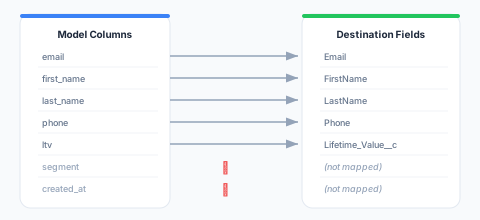
Unmapped source columns are ignored — their data is not sent to the destination. Unmapped destination fields retain their current values in the destination (they are not cleared).
Mapping Sources
The source side of a mapping can be more than a column on the synced model. For audience syncs and journey Send to Destination tiles, the source picker offers three kinds of sources:
- Columns — Columns from the audience’s parent model.
- Traits — Computed traits defined on the parent model. Selecting a trait sends its computed value for each member.
- Related models — Columns from models connected to the parent model through relationships (see Relationships).
Related Model Columns
Related model columns let you send values like “latest order amount” or “number of purchased products” without first creating a trait. Open the source picker and choose a column under the Related group; models reachable through further relationships can be browsed with Browse relations… (up to your workspace’s relationship depth limit).
How the value is resolved depends on the relationship’s cardinality:
- One-to-one relationships (e.g., user → profile): the related row’s column value is sent directly.
- One-to-many and many-to-many relationships (e.g., user → orders): many rows can match, so you choose how to reduce them to one value:
- Pick one row — Select the latest or earliest row by an order column (defaults to the related model’s timestamp column; ties are broken deterministically), then take the chosen column from that row. Example: latest order’s
amount, ordered byorder_date. - Aggregate — Apply
SUM,COUNT,AVG,MIN, orMAXacross all matching rows. Example:SUM(amount)across completed orders.COUNTneeds no column.
- Pick one row — Select the latest or earliest row by an order column (defaults to the related model’s timestamp column; ties are broken deterministically), then take the chosen column from that row. Example: latest order’s
Either way, you can add filters — simple conditions on the related model’s columns (for example status equals completed) that narrow the rows considered before picking or aggregating.
Members with no matching related rows receive an empty (null) value for the field — including COUNT, which is null rather than 0 when no rows match. Use a transform with a default value if your destination needs 0 instead.
Notes:
- Sums, averages, and counts always produce numbers; other selections keep the related column’s data type.
- Columns marked Blocked in a model’s column settings cannot be used as the value, order column, or in filters.
- Adding a related column to an existing sync triggers one full refresh on the next run, so every destination record receives the new field. Removing one keeps normal incremental behavior.
- Related model columns are available in audience syncs and journey send tiles. Model syncs map only the model’s own columns.
Identifier Mapping
At least one model column marked as an identifier must be mapped to the destination’s primary identifier field. This mapping tells Zeotap how to match source records to destination records.
How Identifier Matching Works
When a reverse ETL sync runs in upsert or mirror mode:
- Zeotap reads the identifier value from the source column (e.g.,
email = "john@example.com") - It looks up the matching record in the destination using the mapped identifier field (e.g.,
Email = "john@example.com") - If a match is found, the record is updated with the new attribute values
- If no match is found, a new record is created
Common Identifier Mappings
| Model Column | Destination Field | Destination Type |
|---|---|---|
email | Email | Salesforce Contact |
email | email | HubSpot Contact |
customer_id | External_ID__c | Salesforce (custom external ID) |
email | email_address | Mailchimp Member |
phone | phone | Google Ads Customer Match |
External ID Mapping
Many CRM destinations support external ID fields that let you match records by your own identifier (rather than email):
Model: customer_id → Salesforce: External_ID__cThis is useful when:
- Multiple records may share the same email
- You want deterministic matching based on your own IDs
- The destination supports external ID upsert operations
Required Fields
Some destinations require certain fields to be mapped for record creation to succeed. Required fields are marked with an asterisk (*) in the mapping interface.
Common required fields by destination:
| Destination | Required Fields |
|---|---|
| Salesforce Contact | LastName |
| Salesforce Lead | LastName, Company |
| Salesforce Account | Name |
| HubSpot Contact | email |
| Google Ads Customer Match | At least one of: email, phone, mobile_id |
| Meta Custom Audience | At least one of: email, phone, mobile_advertiser_id |
If a required field is not mapped, the reverse ETL sync will fail during validation when saving.
Default Destination Fields
Some destinations have pre-configured default fields that are automatically available for mapping. These are standard fields defined by the destination platform:
| Destination | Default Fields Examples |
|---|---|
| Salesforce | FirstName, LastName, Email, Phone, Title, Department |
| HubSpot | email, firstname, lastname, phone, company, jobtitle |
| Google Ads | email, phone, first_name, last_name, country_code, postal_code |
Custom fields (e.g., Salesforce custom fields ending in __c) are also available if they exist in the destination.
Data Type Compatibility
When mapping fields, the data types of the source column and destination field should be compatible:
| Source Type | Compatible Destination Types |
|---|---|
| Text | Text, Email, Phone, URL, Picklist |
| Number | Number, Currency, Percent, Integer |
| Boolean | Boolean, Checkbox |
| Date | Date, DateTime |
| Datetime | DateTime, Date (time is dropped) |
| JSON | Text (serialized), JSON (if supported) |
Zeotap performs automatic type conversion where possible:
- Numbers to text:
42becomes"42" - Booleans to text:
truebecomes"true" - Dates to text:
2025-01-15becomes"2025-01-15" - Text to numbers:
"42"becomes42(fails if not a valid number)
If a type conversion fails for a specific row, that row is recorded as an error in the reverse ETL sync run results.
Mapping Strategies
Full Mapping
Map every model column to a destination field. Best when:
- You want to sync all available data
- The destination fields exist for every column
- You need complete data in the destination
Selective Mapping
Map only a subset of model columns. Best when:
- Not all model columns are relevant to the destination
- You want to minimize API calls (fewer fields = smaller payloads)
- Some columns contain sensitive data that shouldn’t be sent to the destination
Identifier-Only Mapping
Map only identifier columns (no attributes). Useful for:
- Match-only reverse ETL syncs where you just need to identify records (e.g., Google Ads Customer Match)
- Building destination-side lists without updating record data
Mapping Interface Features
Auto-Mapping
The mapping interface offers an Auto-Map feature that automatically maps source columns to destination fields with matching names. It uses fuzzy matching to handle common naming differences:
| Source Column | Auto-Mapped Destination Field |
|---|---|
email | Email |
first_name | FirstName |
last_name | LastName |
phone_number | Phone |
Auto-mapping is a starting point — review and adjust the suggestions before saving.
Search and Filter
For destinations with many fields (e.g., Salesforce objects with 100+ fields):
- Use the search bar to filter destination fields by name
- Filter by field type (text, number, date, etc.)
- Toggle between showing all fields or only unmapped fields
Mapping Validation
Before saving, the mapping interface validates:
- At least one identifier is mapped (for upsert and mirror modes)
- All required destination fields are mapped
- Data types are compatible (warnings for potential conversion issues)
- No duplicate mappings (one source column to multiple destination fields is not allowed)
Example Mappings
Salesforce Contact Sync
{
  "field_mappings": [
    {"source": "email", "destination": "Email", "is_identifier": true},
    {"source": "first_name", "destination": "FirstName"},
    {"source": "last_name", "destination": "LastName"},
    {"source": "phone", "destination": "Phone"},
    {"source": "title", "destination": "Title"},
    {"source": "company", "destination": "Account.Name"},
    {"source": "lifetime_value", "destination": "LTV__c"},
    {"source": "segment", "destination": "Segment__c"}
  ]
}
HubSpot Contact Sync
{
  "field_mappings": [
    {"source": "email", "destination": "email", "is_identifier": true},
    {"source": "first_name", "destination": "firstname"},
    {"source": "last_name", "destination": "lastname"},
    {"source": "phone", "destination": "phone"},
    {"source": "company_name", "destination": "company"},
    {"source": "lifecycle_stage", "destination": "lifecyclestage"}
  ]
}
Google Ads Customer Match
{
  "field_mappings": [
    {"source": "email", "destination": "email", "is_identifier": true},
    {"source": "phone", "destination": "phone"},
    {"source": "first_name", "destination": "first_name"},
    {"source": "last_name", "destination": "last_name"},
    {"source": "country", "destination": "country_code"},
    {"source": "zip", "destination": "postal_code"}
  ]
}
Next Steps
- Create a reverse ETL sync with field mapping
- Set a schedule for your reverse ETL sync
- Monitor sync runs to verify mappings work correctly
- Troubleshoot errors from mapping issues