Building a Warehouse-First CDP
This guide walks you through building a complete Customer Data Platform using Zeotap with your data warehouse as the single source of truth. By the end, you’ll have a full pipeline from raw warehouse data to activated audiences in your marketing and sales tools.
Philosophy: Your Warehouse Is the Source of Truth
In a warehouse-first CDP, your data warehouse (Snowflake, BigQuery, Databricks, or ClickHouse) is the central hub for all customer data. Instead of copying data into a proprietary CDP, Zeotap generates and executes SQL directly against your warehouse. This means:
- No data copies — Customer data stays where it is. Computed attributes, audiences, and models are all computed as SQL queries in your warehouse.
- SQL-native — Every computation is transparent SQL that your data team can review, version, and audit.
- Full warehouse power — Leverage your warehouse’s compute, scale, and query engine rather than a black-box CDP engine.
- Complete audit trail — Every query, every sync run, every audience evaluation is logged with timestamps and row counts.
- Single source of truth — No reconciliation between “CDP data” and “warehouse data” because they’re the same thing.
Prerequisites
- A Zeotap workspace (create one here)
- A data warehouse (Snowflake, BigQuery, Databricks, or ClickHouse) with customer data tables
- Admin or Editor role in your Zeotap workspace
Step 1: Connect Your Warehouse
Warehouses give Zeotap read access to your data. Zeotap never writes to your source tables (except for materialized computed-attribute results in a dedicated schema).
- Navigate to Warehouses in the left sidebar
- Click Add Warehouse
- Select your warehouse type
- Enter your connection credentials:
- Snowflake: Account, Warehouse, Database, Schema, Username, Password or Key Pair
- BigQuery: Project ID, Dataset, Service Account JSON
- Databricks: Host, HTTP Path, Personal Access Token, Catalog, Schema
- ClickHouse: Host, Port, Protocol, Database, Username, Password
- Click Test Connection — Zeotap will execute a lightweight
SELECT 1query to verify connectivity - Click Save
Best practice: Create a dedicated read-only service account for Zeotap. Grant SELECT access only to the schemas and tables that contain customer data. Follow the principle of least privilege.
For detailed setup instructions per warehouse, see:
Step 2: Build Data Models for Customer Entities
Models are SQL queries that shape your raw warehouse tables into the data structures Zeotap works with. Think of them as views that define “this is what a customer looks like” or “these are all the orders.”
- Navigate to Models in the left sidebar
- Click Create Model
- Select the warehouse you connected in Step 1
- Write a SQL query that selects customer data:
-- Example: Customer master model
SELECT
  c.customer_id,
  c.email,
  c.phone,
  c.first_name,
  c.last_name,
  c.created_at,
  c.country,
  c.company_name,
  COALESCE(o.total_orders, 0) AS total_orders,
  COALESCE(o.total_revenue, 0) AS total_revenue,
  o.last_order_date
FROM customers c
LEFT JOIN (
  SELECT
    customer_id,
    COUNT(*) AS total_orders,
    SUM(order_total) AS total_revenue,
    MAX(order_date) AS last_order_date
  FROM orders
  GROUP BY customer_id
) o ON c.customer_id = o.customer_id
WHERE c.email IS NOT NULL- Click Preview to see sample results and verify the data shape
- Configure column types — mark
customer_idandemailas identifiers, the rest as attributes - Name the model (e.g., “Customer Master”) and click Save
Tip: Create multiple models for different entity types — one for customers, one for accounts, one for products. This keeps each model focused and composable.
Step 3: Define Your Relationships with Entity Types
Relationships give Zeotap a structured understanding of your customer data. Entity types represent the core objects in your business (User, Account, Product, etc.), and relationships define how they connect.
- Navigate to Relationships in the left sidebar
- Click Create Entity Type
- Name it (e.g., “User”) and provide a description
- Map attributes from your models to this entity type:
- Identifiers — Fields that uniquely identify an entity (e.g.,
customer_id,email,phone). These are used for identity resolution and destination matching. - Attributes — Descriptive fields (e.g.,
first_name,country,company_name)
- Identifiers — Fields that uniquely identify an entity (e.g.,
- Click Save
If your data has multiple entity types, create them and define relationships:
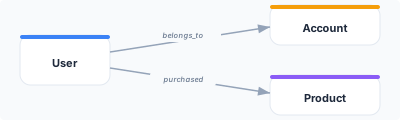
Relationships enable cross-entity audience conditions like “Users whose Account has more than 100 employees.”
Step 4: Create Computed Attributes from Warehouse Data
Computed attributes transform raw data into actionable metrics. They’re evaluated as SQL against your warehouse and materialized for fast audience building.
- Navigate to Computed Attributes under Sources in the left sidebar
- Click Create Computed Attribute
- Choose the computed attribute type:
SQL Computed Attribute — For custom calculations:
-- Lifetime value
SELECT
  customer_id,
  SUM(order_total) - COALESCE(SUM(refund_amount), 0) AS lifetime_value
FROM orders
LEFT JOIN refunds USING (order_id)
GROUP BY customer_id
Aggregation Computed Attribute — For common metrics (no SQL needed):
- Function:
Count - Source table:
orders - Group by:
customer_id - Result: “Total Order Count”
Formula Computed Attribute — To combine existing computed attributes:
average_order_value = total_revenue / total_orders
is_high_value = lifetime_value > 1000
days_since_last_order = DATEDIFF('day', last_order_date, CURRENT_DATE())- Set a schedule (daily is a good starting point for most computed attributes)
- Click Save
Recommended starting computed attributes:
| Computed Attribute Name | Type | Description |
|---|---|---|
| Lifetime Value | SQL | Total spend minus refunds |
| Total Orders | Aggregation | Count of all orders |
| Average Order Value | Formula | Lifetime value / total orders |
| Days Since Last Purchase | SQL | Days between last order and today |
| Engagement Score | SQL | Composite score from login frequency, feature usage, etc. |
| Account Size | Aggregation | Number of users per account |
Step 5: Build Audiences
Audiences are groups of customers defined by conditions on computed attributes and attributes. The filter builder lets you construct complex conditions with AND/OR logic.
- Navigate to Audiences under Activation in the left sidebar
- Click Create Audience
- Select the entity type (e.g., “User”)
- Build your conditions using the filter builder:
Example: High-Value At-Risk Customers
WHERE
  lifetime_value > 500
  AND days_since_last_purchase > 60
AND total_orders >= 3- Click Estimate to see approximate audience size
- Click Preview to see sample members and verify the audience makes sense
- Name the audience and click Save
Useful starter audiences:
| Audience | Conditions | Use Case |
|---|---|---|
| High-Value Customers | lifetime_value > 500 | VIP programs, premium support |
| Churn Risk | days_since_last_purchase > 60 AND total_orders >= 2 | Re-engagement campaigns |
| New Users (7 days) | created_at > 7 days ago | Onboarding sequences |
| Big Accounts | account_size > 50 | Enterprise sales outreach |
| Engaged but Not Purchased | engagement_score > 80 AND total_orders = 0 | Conversion campaigns |
Step 6: Activate to Destinations
Now connect your audiences to the tools where your team takes action — CRMs, ad platforms, email tools, and more.
Set Up a Destination
- Navigate to Connections under Destinations in the left sidebar
- Click Add Destination
- Select the destination type (e.g., Salesforce, Google Ads, Braze)
- Complete the authentication flow
- Click Save
Create a Sync
- Navigate to Syncs under Destinations
- Click Create Sync
- Select the audience you built in Step 5
- Select the destination
- Choose a sync mode:
- Mirror — Keeps the destination in perfect sync (adds new members, removes exited members). Best for most use cases.
- Additive — Only adds new members, never removes. Good for building cumulative lists.
- Subtractive — Only removes members who no longer qualify. Good for suppression lists.
- Map fields — select which computed attributes and attributes to send alongside membership
- Set a schedule (e.g., every 6 hours)
- Click Save & Run
Monitor the Sync
- Go to the Sync Runs tab on the sync detail page
- Review the run summary: members added, removed, updated, and any errors
- Check Insights > Sync Health for ongoing monitoring across all syncs
Benefits of the Warehouse-First Approach
Data Stays in Your Warehouse
Customer data never leaves your infrastructure. Zeotap reads data via SQL queries and writes only activation payloads (membership lists, mapped fields) to destinations. Your warehouse remains the authoritative store.
SQL-Native Transparency
Every computed attribute, audience, and model is expressed as SQL. Your data team can review the exact queries being run, version them in your own systems, and extend them with warehouse-specific functions.
Complete Audit Trail
Every sync run, computed attribute evaluation, and audience computation is logged with timestamps, row counts, and error details. Use Insights dashboards or query the audit tables directly in your warehouse.
No Vendor Lock-In
Because your data stays in your warehouse and all logic is expressed as SQL, there’s no proprietary data format or opaque scoring engine to migrate away from. If you stop using Zeotap, your data is exactly where it always was.
Warehouse-Scale Performance
Audience evaluation, computed-attribute computation, and data preparation all happen on your warehouse’s compute engine. You get the full power of Snowflake, BigQuery, Databricks, or ClickHouse — not a scaled-down CDP query engine.
Next Steps
- Sync audiences to your CRM — Detailed guide for Salesforce and HubSpot activation
- Build retargeting audiences — Create audiences for ad platforms
- Set up identity resolution — Unify customer records across data sources
- Explore all destinations — See the full catalog of 50+ supported destinations