Publishing, Versions & Rollback
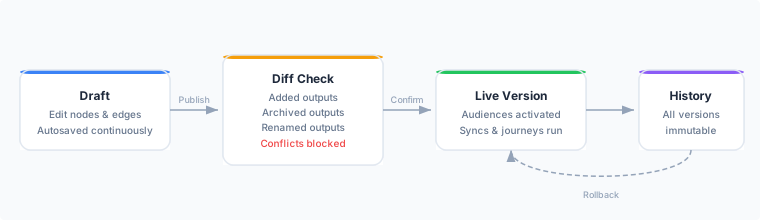
The Audience Canvas separates editing from activation. Your in-progress work lives in a draft that does not affect live audiences. When you are ready, you publish the draft, which creates a new immutable version and updates the canvas-owned audiences accordingly.
Draft autosave
Every change you make in the canvas editor — adding a node, connecting two nodes, editing a filter condition, renaming an Output — is saved to the draft automatically within a few seconds. You do not need to click a Save button.
The draft is private to the canvas editor. Syncs, journeys, and audience evaluations all read from the published version, so drafting new branches or restructuring the graph does not affect anything in production until you publish.
Publishing
Click Publish in the top-right corner of the editor. Before applying any changes, Zeotap computes a publish diff comparing your draft to the currently published version.
Understanding the publish diff
| Diff category | What it means |
|---|---|
| Added | New Output nodes in the draft that have no corresponding audience yet. Publishing creates a new audience row for each. |
| Renamed | Output nodes whose Audience name changed since the last publish. Publishing updates the audience’s display name. |
| Archived | Output nodes that existed in the last published version but are absent from the draft. Publishing archives the corresponding audience (it is removed from the active list but its historical data is retained). |
| Conflicts | Archived outputs whose audiences are still referenced by an active sync or journey. Publishing is blocked until each conflict is resolved. |
Resolving conflicts
A conflict means you removed an Output node whose audience is still in use downstream. To resolve it:
- Note the conflicting audience name listed in the diff panel.
- Navigate to the active sync or journey that references that audience.
- Remove or update the reference (delete the sync, point it at a different audience, or remove the journey step).
- Return to the canvas and click Publish again.
Once all conflicts are cleared, the diff panel shows only Added, Renamed, and Archived entries with no blocking items.
Confirming the publish
Review the diff and click Confirm & Publish. Zeotap applies all changes atomically:
- New audiences are created and immediately available for syncing.
- Renamed audiences update their display name across all references (syncs and journeys continue without interruption).
- Archived audiences are removed from the active Audiences list.
The publish completes in seconds. A success banner confirms the new version number.
Version history
Every successful publish creates an immutable version snapshot that records the full node-and-edge graph at that point in time. You can view the version history from the canvas detail page.
Navigate to Activation > Audience Canvases, open a canvas, and click Version History. Each entry shows:
| Column | Description |
|---|---|
| Version | Incrementing version number (v1, v2, v3, …). |
| Published at | Timestamp of when the version was promoted to live. |
| Published by | The user who clicked Publish. |
| Changes | A summary of the diff applied at that publish (added, renamed, archived counts). |
Click any version to preview the node-and-edge graph that was live at that point. The preview is read-only.
Rollback
If a published change introduces a problem — for example, a filter condition that produces an unexpectedly small audience, or a Split configuration that routes entities incorrectly — you can roll back to any previous version.
- Open Version History from the canvas detail page.
- Find the version you want to restore.
- Click Roll back to this version.
- Confirm the rollback.
Rollback works the same way as publishing: Zeotap computes a diff between the current live version and the target rollback version, and applies the same Added / Renamed / Archived / Conflict logic. If audiences were archived in later versions but are still referenced by active syncs, the rollback may be blocked until conflicts are resolved.
After a successful rollback, the canvas draft is set to match the rolled-back version, and a new version entry appears in the history marking the rollback event. The version history is never modified — earlier versions remain accessible even after a rollback.
First publish
A newly created canvas has no published version. Until you publish:
- No audiences are created.
- Syncs cannot be created from this canvas’s outputs.
- Live count estimates work on the draft, so you can validate node counts before going live.
Next Steps
- Canvas-owned audiences — how published audiences behave and how to activate them
- Node reference — configuration reference for every node type
- Syncs — activate a canvas-owned audience to a destination
- Journeys — use a canvas-owned audience as a journey trigger