Stores
Experimental — in active development. Stores are not yet generally available. The behaviour, setup flow, and API described here may change before general availability. Do not rely on Stores for production traffic yet.
A Store is a low-latency, serve-by-key layer that exposes selected attributes from your warehouse models for direct key lookups. Instead of running a warehouse query at request time, your application reads a Store Entry by its key and gets the attributes back in milliseconds.
Stores are the “what are this user’s values?” surface: give the Stores API a key (for example a user_id) and it returns that key’s current attributes as a JSON object. They are not a sync — a sync moves data to an external destination, whereas a Store is an addressable read layer you query directly.
When to Use a Store
Reach for a Store when a decisioning system needs attribute lookups faster than a warehouse round-trip:
- Web and app personalization — read a visitor’s plan, tier, or last-seen attributes to tailor the experience on page load.
- Edge and serverless functions — enrich a request at the edge without a connection back to the warehouse.
- Ad bidders and real-time decisioning — fetch an audience’s attributes within a tight latency budget.
A Store holds attributes addressed by a key. If you instead need to answer “is this user in an audience?” (a yes/no membership check), that is a separate surface — a Store returns values, not membership.
How Stores Work
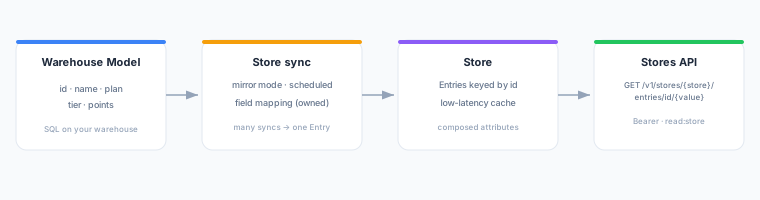
A Store is populated from your warehouse and served by key:
- You point one or more warehouse Models at a named Store and map which columns become Entry fields.
- On a schedule, the mapped fields are written into the Store as Entries, each keyed by the model row’s index value (
idby default). - Your application queries the Stores API by key and reads the merged attributes for that key in low-tens-of-milliseconds.
The Store is a cache: the warehouse remains the system of record, and the Store holds a refreshable copy of the attributes you chose to serve.
Entries and Composition
An Entry is a single row in a Store, addressed by its key. An Entry’s shape is defined by the field mapping that populates it. Multiple mappings can compose one Entry — each owns a disjoint set of fields — so the Stores API returns the union of all owned fields as a single JSON object.
Freshness and Deletion
Each Store is refreshed on a schedule, so served attributes reflect the warehouse as of the last refresh rather than live values. When a row leaves the source model, the fields it owned are handled according to the configured deletion behavior:
| Setting | Behavior |
|---|---|
| Do nothing | Owned fields are left in the Store untouched. |
| Clear owned fields | Owned fields are removed from the Entry. If other fields remain, the Entry stays. |
| Delete the Entry | Owned fields are removed; if no fields remain, the whole Entry is deleted (subsequent lookups return 404). |
Setting Up a Store
- Navigate to Stores in the left sidebar.
- Click New Store.
- Enter a Store name (lowercase letters, numbers, and hyphens; must start with a letter).
- Click Create Store.
- Open the Store and add a source: select the Model to populate it from.
- Configure the Field mapping — choose which model columns to write as Entry fields. The index column (
idby default) is the Entry key and is not remapped. - Set the Deletion behavior and the Schedule (for example,
Every 1 hour). - Save. The Store populates on its next scheduled refresh.
Prerequisites
- A configured warehouse and at least one Model with an index column (
idby default). - A
read:storeAPI key to query the Stores API (issued from the Store detail page).
Querying the Stores API
Read a Store Entry by key using a Bearer API key with the read:store scope.
Endpoint
GET /v1/stores/{store}/entries/id/{value}| Parameter | Description |
|---|---|
store | The Store name (as created in the UI). |
value | The key value to look up. |
Authentication
Pass your read:store API key as a Bearer token:
curl https://composable.zeotap.com/v1/stores/my-store/entries/id/user-123 \
  -H "Authorization: Bearer <your-api-key>"
Response
A 200 OK returns the Entry’s merged fields as a JSON object:
{
  "plan": "pro",
  "tier": "gold",
  "loyalty_points": 4200,
  "first_name": "Alex"
}| Status | Meaning |
|---|---|
200 OK | Entry found; body is the merged attributes. |
401 Unauthorized | Missing or invalid Bearer token. |
403 Forbidden | API key does not have the read:store scope. |
404 Not Found | No Entry for the given key (or all fields were cleared). |
429 Too Many Requests | Rate limit exceeded; retry after the Retry-After header value (seconds). |
Issuing a read:store API Key
- Open the Store in the UI.
- Click Issue API key.
- Copy the key immediately — it is shown only once.
Each key is scoped to read:store and tied to your workspace. Revoke keys from the same page.
Next Steps
- Models — define the warehouse queries that populate a Store.
- Field Mapping — learn how column-to-field mapping works.