Node Reference
Every node on a canvas has a type, an optional display name, and a set of configuration fields specific to that type. This page describes every node type, its configuration, and when to use it.
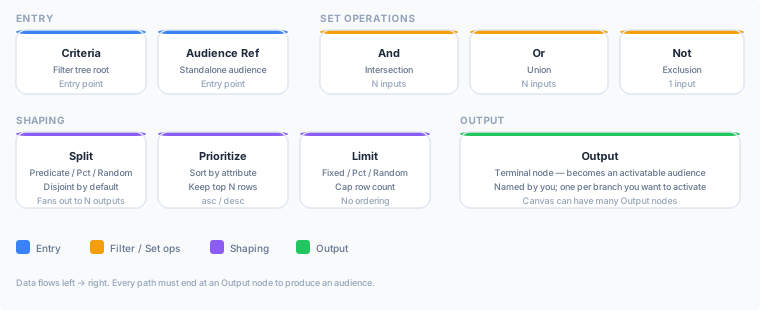
Entry nodes
Entry nodes produce the initial set of entities that flows through the canvas. A canvas must have at least one entry node. Entry nodes have no incoming connections — they are always the first node in a path.
Criteria
A Criteria node defines an inline filter tree, identical to the filter tree used by the standard audience builder. It works as both an entry node (when it has no upstream connection) and as a mid-pipeline filter (when it has one or more upstream connections — the criteria is AND-applied to the incoming set).
| Field | Type | Required | Description |
|---|---|---|---|
| Name | Text | No | Display label shown on the canvas tile. Defaults to "Criteria". |
| Conditions | Rule tree | Yes | The filter conditions, edited in a dialog from the inspector. Supports attribute, event, time-window, computed attribute, and relationship conditions — the same operators as the standard filter builder. |
When to use as an entry node: When the root conditions are specific to this canvas and you want to define them in one place. You can have multiple entry Criteria nodes on a single canvas — for example, to produce two sets that you later union with an Or node.
When to use as a mid-pipeline filter: When you want to progressively narrow a set without starting a new branch — for example, after an upstream Criteria that selects all customers, add a downstream Criteria that further restricts to customers in a specific region. The compiler ANDs the upstream population with this node’s filter.
Example (entry): A Criteria node that admits users who signed up in the last 90 days and have at least one completed order.
Example (mid-pipeline): 250,000 customers from an upstream Criteria → downstream Criteria (region = “EU”) → 68,000 EU customers.
Audience Reference
An Audience Reference node pulls an existing standalone audience into the canvas as an entry set. The referenced audience’s full membership at query time becomes the input to downstream nodes.
| Field | Type | Required | Description |
|---|---|---|---|
| Name | Text | No | Display label shown on the canvas tile. |
| Audience | Dropdown | Yes | The standalone audience to reference. Only standalone (non-canvas) audiences on the same entity model appear in this list. Canvas-owned audiences cannot be referenced — compose them within the same canvas instead. |
When to use: Use an Audience Reference node when you want to build on top of an audience you already maintain — for example, your “All active subscribers” audience that the data team keeps up to date.
Note: Canvas-owned audiences appear with a “From canvas: <canvas name>” chip in other audience pickers (such as the filter-condition picker on the standard builder). However, they do not appear in the Audience Reference node picker within a canvas. To combine two canvas outputs, connect their upstream branches before the Output nodes rather than referencing one from another canvas.
Set-operation nodes
These nodes combine sets flowing through the graph. To narrow a single set with additional rules, use a downstream Criteria node (see above) — it doubles as a mid-pipeline filter.
And
An And node emits the intersection of all its upstream inputs — entities that appear in every connected upstream set.
| Field | Type | Required | Description |
|---|---|---|---|
| Name | Text | No | Display label on the canvas tile. |
| (no additional configuration) | — | — | Connects 2 or more upstream nodes; no further settings required. |
When to use: Use an And node when you want entities that satisfy all of several conditions expressed as separate upstream branches. This is equivalent to combining multiple Criteria nodes with AND logic, but keeps the canvas visually clear.
Example: Two Criteria nodes — one for “high-value customers” and one for “opted-in to email” — connected to an And node to produce “high-value customers who are opted-in to email.”
Or
An Or node emits the union of all its upstream inputs — entities that appear in at least one connected upstream set (duplicates are removed).
| Field | Type | Required | Description |
|---|---|---|---|
| Name | Text | No | Display label on the canvas tile. |
| (no additional configuration) | — | — | Connects 2 or more upstream nodes; no further settings required. |
When to use: Use an Or node when you want the combined pool from multiple conditions — for example, customers who triggered event A or who have attribute B.
Not
A Not node emits the complement of its single upstream input — entities from the canvas’s full entity model that do not appear in the upstream set.
| Field | Type | Required | Description |
|---|---|---|---|
| Name | Text | No | Display label on the canvas tile. |
| (no additional configuration) | — | — | Takes exactly 1 upstream input. |
When to use: Use a Not node to suppress a set — for example, connect an Audience Reference for “already-converted customers” to a Not node, then connect the Not node to an And node to exclude converters from your acquisition audience.
Shaping nodes
Shaping nodes partition, rank, or cap the set without changing its definition.
Split
A Split node partitions the incoming set into multiple labelled branches. Each branch becomes a separate path to a downstream Output node. Branches are disjoint by default — each entity appears in at most one branch.
| Field | Type | Required | Description |
|---|---|---|---|
| Name | Text | No | Display label on the canvas tile. |
| Split mode | Enum | Yes | How entities are routed across branches. See modes below. |
| Branches | List | Yes | The labelled arms of the split. Each branch carries a label plus the per-branch field its mode requires (a filter tree for Predicate, a share percentage for Percentage / Random). |
| Remainder branch | Toggle | No | When enabled in Predicate mode, a final branch collects entities that match no explicit predicate. |
| Overlap cap | Number | No | Percentage mode only. Maximum number of branches a single entity may appear in (default 1 = disjoint). |
Split modes:
| Mode | Per-branch input | Description | Stability |
|---|---|---|---|
Predicate | Filter tree (same operators as the standard filter builder) | An entity matching multiple branches lands in the first matching branch — branches are evaluated in declared order. | Condition-driven |
Percentage | Share % (0–100, shares should sum to 100) | Hash-stable bucketing on the entity key — the same entity always lands in the same branch as long as the shares don’t change. | Stable across runs |
Random | Share % (0–100, shares should sum to 100) | Random assignment per evaluation — entities may switch branches between runs. | Not stable |
When to use: Use a Split node for A/B testing (Percentage mode for stable assignment), multi-value-tier segmentation (Predicate mode), or randomised holdouts (Random mode).
Example (Percentage mode): A 70/30 split of a “lapsed customers” set into Treatment (70%) and Holdout (30%), each routed to its own Output node for separate activation.
Prioritize
A Prioritize node sorts the incoming set by a chosen attribute and retains the top N entities by rank.
| Field | Type | Required | Description |
|---|---|---|---|
| Name | Text | No | Display label on the canvas tile. |
| Sort by | Attribute | Yes | The attribute (typically a computed attribute) used for ranking. |
| Direction | asc / desc | Yes | Ascending ranks lowest values first; descending ranks highest values first. |
| Keep top N | Integer | No | Maximum number of entities to emit. Leave empty to keep all (use when you only need the sort order, not a cap). |
When to use: Use a Prioritize node when you want to activate the highest-value or highest-risk entities — for example, “the top 5,000 customers by predicted lifetime value” or “the 1,000 most at-risk churners.”
Example: Prioritize on predicted_ltv, direction desc, top N 5000 → emits the 5,000 highest-predicted-LTV customers.
Limit
A Limit node caps the size of the incoming set by drawing an unbiased sample. For a top-N cut by a specific column, place a Prioritize node upstream of the Limit instead.
| Field | Type | Required | Description |
|---|---|---|---|
| Name | Text | No | Display label on the canvas tile. |
| Limit mode | Enum | Yes | How the limit is applied. See modes below. |
| Value | Number | Yes | The limit quantity (absolute count for Random; percentage for Percentage mode). |
Limit modes:
| Mode | Description |
|---|---|
Random | Draws a uniformly random sample of N rows. Every row has equal chance of being selected; the sample may differ on each evaluation. |
Percentage | Draws the given percentage (0–100) of the incoming set via the warehouse’s sample clause. |
When to use: Use a Limit node when you need to cap an audience size for budget, capacity, or experimentation reasons and want an unbiased sample — for example, a random 10,000-customer holdout for an A/B test.
Output node
Output
An Output node is a terminal node. Each Output produces a distinct, activatable audience. A canvas must have at least one Output node, and can have many.
| Field | Type | Required | Description |
|---|---|---|---|
| Name | Text | No | Display label on the canvas tile (separate from the audience name). |
| Audience name | Text | Yes | The name of the audience row created or updated when the canvas is published. This is what appears on the Audiences list. |
When to use: Add an Output node at the end of every branch you want to activate. You can sync, use in journeys, or otherwise operate on each Output’s audience independently.
If you remove an Output node and the corresponding audience is still referenced by an active sync or journey, publishing is blocked. Resolve the conflict (remove the sync or journey reference first) before republishing.
Next Steps
- Building your first canvas — step-by-step walkthrough
- Publishing, versions & rollback — how publish, diff, and rollback work
- Canvas-owned audiences — how produced audiences behave