Audit Log
The workspace audit log answers one question: who changed this, and what did they change?
Every time someone edits your workspace’s configuration — renames a source, edits an audience’s filters, changes a destination’s credentials, activates a journey, changes a member’s role — Zeotap records an entry with the person who did it, the resource they touched, and the exact fields that moved.
Why It Exists
Configuration drifts. An audience that used to return 400,000 profiles now returns 4,000, a sync that ran nightly stopped, a destination started rejecting rows. In each case the useful question is not “what is the configuration now” — you can already see that — but “what did it used to be, and who changed it?”
The audit log is also the artefact compliance reviews ask for: a tamper-evident record of administrative activity, including membership and role changes, that can be exported and handed over.
What Gets Recorded
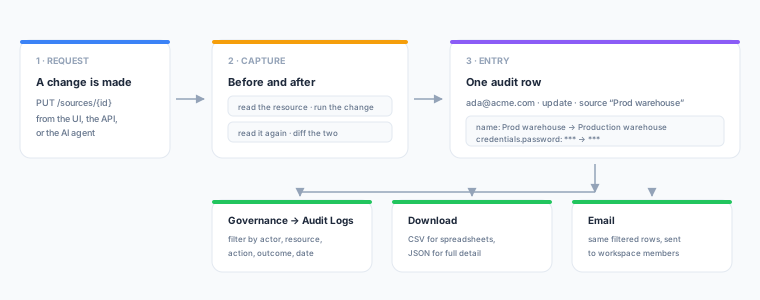
Every mutating action against workspace configuration made through the app or the REST API. That covers sources, models, relationships, computed attributes, audiences and canvases, destinations, syncs, journeys, identity graphs, golden records, loaders, event keys and schemas, stores and feeds, alert rules and channels, API keys, subsets, roles, groups, members and invites, and workspace settings.
Changes the AI agent makes through its own tools are not yet recorded here. The agent’s write tools run outside the API path this log observes, so an audience the agent creates or edits does not currently produce an entry. Its tool calls are recorded, in a different place — see the AI Audit Log page. Closing this gap is planned.
Each entry holds:
| Field | What it tells you |
|---|---|
| When | The timestamp of the change |
| Who | The person’s name and email, plus whether the action came from a user or an API key |
| Action | create, update, delete, or a specific verb like activate, trigger or rollback |
| Resource | The type and name of the thing that changed |
| Changes | Each field that moved, with its value before and after |
| Outcome | Whether the change succeeded or was rejected |
Field-Level Changes
The Changes column is the part that makes the log useful. Expanding a row shows each field that actually moved:
name          Prod warehouse  →  Production warehouse
config.host   a.example       →  b.example
schedule      0 2 * * *       →  0 6 * * *
Nested configuration is reported by its path (config.host), so an edit buried inside a connector’s settings is as visible as a rename. Fields that did not change are not listed.
Rejected Changes
A change that was rejected — an invalid configuration, a conflicting name — is recorded too, marked failed, with no field changes (nothing moved). That matters for troubleshooting: “someone tried to do this and it did not work” is often the answer you need.
Requests that were denied for lack of permission are deliberately not recorded, so the log cannot be filled with noise by someone without access to the workspace.
Credentials Are Never Stored
Passwords, tokens, API keys, private keys and service-account JSON never appear in the audit log, in any field.
When a credential changes, the entry still records that it changed — the field is listed with ***redacted*** on both sides — so a credential rotation is fully auditable without the credential itself ever being written down. Adding a credential, rotating it, and clearing it all read differently, so you can tell them apart.
Viewing the Log
Go to Governance → Audit Logs. The section holds two tabs: Audit Logs (this one) and AI Audit Logs.
The table lists entries newest-first. Click any row to expand it and see the field-level changes.
Filtering
| Filter | Use it to answer |
|---|---|
| Search | ”What happened to the audience called High LTV?” |
| Resource | ”Show me every destination change.” |
| Action | ”What has been deleted?” |
| Actor | ”What did this person change?” |
| Outcome | ”What has been failing?” |
| From / To | ”What changed between the 3rd and the 5th?” |
The dropdowns list only the actors, actions and resource types that actually appear in your workspace’s log, so there is nothing to scroll past that could not return a result.
Filters apply to downloads and emails too — whatever the table is showing is exactly what gets exported.
Exporting
The Export menu offers three options:
- Download CSV — opens in Excel, Google Sheets or Numbers. One row per entry, with the changes summarised in a readable column.
- Download JSON — the complete entry including the structured change list, for programmatic analysis or ingestion into a SIEM.
- Email to the team — sends the same filtered rows as an attachment.
Emails can only be sent to members of the workspace. You can add a short note explaining why you are sending it, which appears in the message body.
Very large exports are capped at 50,000 entries. When that happens the download tells you so — narrow the date range to get the rest.
Permissions
Two permissions gate the audit log, both granted to Owner and Admin only:
| Permission | Allows |
|---|---|
workspace_audit.read | Viewing the audit log and its filters |
workspace_audit.export | Downloading or emailing the log |
The Audit Log tab is hidden from members who lack workspace_audit.read. This is deliberate: the log records membership and role changes, which is administrative information rather than operational.
The separate AI Audit Log page records AI agent tool calls and guardrail decisions, and is visible to members. The two are complements rather than substitutes: this log covers configuration changes made through the app and the API, that one covers what the agent was asked to do.
Retention
Entries are kept for 365 days by default, after which a daily sweep removes them. Self-hosted deployments can change this with the WORKSPACE_AUDIT_RETENTION_DAYS environment variable; setting it to 0 keeps entries indefinitely.
API Reference
# List entries (filters are optional and combine)
GET /api/v1/workspaces/{id}/audit-log
      ?actor_id=&action=&resource_type=&resource_id=
      &outcome=success|failure&from=2026-08-01&to=2026-08-09
      &q=search&limit=50&offset=0

# Distinct actors / actions / resource types present in this workspace
GET /api/v1/workspaces/{id}/audit-log/filters

# Download the filtered log
GET /api/v1/workspaces/{id}/audit-log/export?format=csv|json

# Email the filtered log to workspace members
POST /api/v1/workspaces/{id}/audit-log/email
{
  "recipients": ["teammate@acme.com"],
  "format": "csv",
  "note": "Q3 access review"
}
from and to accept either a full RFC 3339 timestamp or a bare YYYY-MM-DD date. A bare date on to covers the whole of that day.
The list response is:
{
  "entries": [
    {
      "id": "…",
      "actor_email": "ada@acme.com",
      "actor_name": "Ada Lovelace",
      "actor_type": "user",
      "action": "update",
      "resource_type": "source",
      "resource_id": "…",
      "resource_name": "Production warehouse",
      "changes": [
        { "field": "name", "before": "Prod warehouse", "after": "Production warehouse" }
      ],
      "outcome": "success",
      "created_at": "2026-08-09T12:30:00Z"
    }
  ],
  "total": 1,
  "limit": 50,
  "offset": 0
}
See Base URL and Authentication for the required headers.
Best Practices
- Check the log first when something changes behaviour. A sync that stopped, an audience that shrank — filter by that resource and read the last few entries before investigating anything else.
- Review administrative changes periodically. Filter by resource type
role,memberorgroupto see every access change in a period. This is the fastest way to run a quarterly access review. - Export before a compliance review, not during. Download the period you need as CSV and attach it to your review record, rather than screenshotting the UI.
- Watch the failures. Filtering by outcome
failuresurfaces configuration that people keep trying to save and cannot — usually a sign that something is confusing or broken rather than that someone is doing something wrong.